

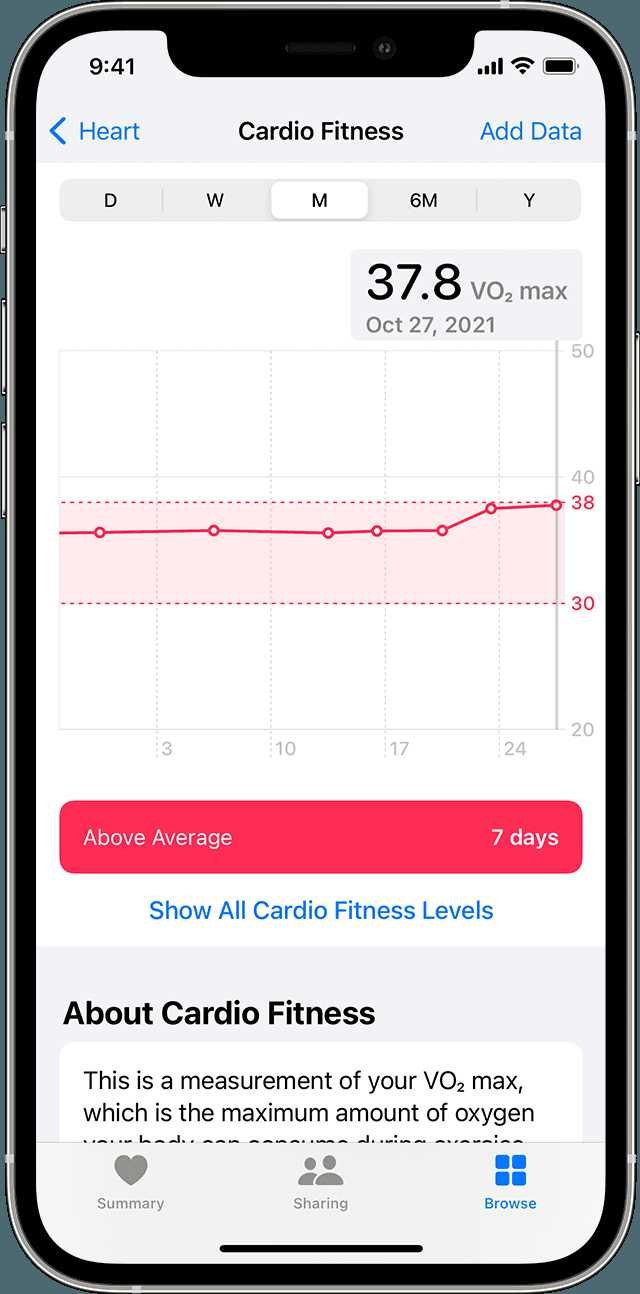
Cardio Fitness on iPhone can be easily accessed through the Health app, making it simple to track your heart health right from your device. If you’ve been wondering where to find this feature, the good news is that it’s integrated seamlessly into your iPhone, providing valuable insights about your cardiovascular well-being. In just a few taps, you can view your Cardio Fitness levels and keep tabs on your progress over time.
To quickly answer your question: Cardio Fitness data is located in the Health app, under the ‘Health Data’ section, specifically in the ‘Heart’ category. You can access it by opening the Health app, navigating to the ‘Browse’ tab, and selecting ‘Heart.’ There, you’ll find your Cardio Fitness (VO2 Max) information if your iPhone is paired with a compatible Apple Watch or other fitness devices.
If you’re interested in optimizing your health and monitoring your heart’s performance, knowing exactly where to find your Cardio Fitness data on your iPhone is essential. Whether you’re a fitness enthusiast or just starting your wellness journey, understanding how to locate and interpret this information helps you stay motivated and informed about your cardiovascular health. The good news is that with a few simple steps, your iPhone can become a powerful tool to keep you on top of your fitness goals.

Where Is Cardio Fitness on iPhone? A Complete Guide
Understanding Cardio Fitness and Its Importance
Cardio fitness, also called cardiovascular health, shows how well your heart and lungs work during exercise. It is a crucial part of staying healthy and active. The better your cardio fitness, the easier it is for your body to get oxygen and nutrients during physical activity.
Many iPhone users want to track this important health metric. Tracking cardio fitness helps you see how well your body is doing over time. It can motivate you to stay active and improve your overall health.
How Does the iPhone Track Cardio Fitness?
The iPhone doesn’t measure cardio fitness directly on its own. Instead, it works with Apple Watch and health apps to gather the information you need. Your iPhone uses data from sensors like the heart rate monitor on your Apple Watch, GPS, and other inputs to estimate your fitness level.
The key metric used is called *VO2 Max* or *Maximum Oxygen Uptake*. This shows how efficiently your body uses oxygen during exercise. Higher VO2 Max numbers mean better cardio health.
Where Is Cardio Fitness Data Found on Your iPhone?
Your iPhone stores and displays cardio fitness data within the *Health* app. You can access this app easily from your home screen or search bar.
Once open, look in the *Health Data* section. There, you will see the category labeled *Cardio Fitness*. This section contains your VO2 Max scores, trends, and related insights.
It is important to note that you need an Apple Watch paired with your iPhone to see most of this data. Without the watch, your iPhone cannot collect enough information to generate accurate cardio fitness metrics.
How to View Cardio Fitness on Your iPhone
Viewing your cardio fitness data on your iPhone is simple. Follow these steps:
- Open the *Health* app. It has a white icon with a red heart.
- Tap on the *Browse* tab at the bottom right corner.
- Scroll to find and select *Heart* or *Cardio Fitness*.
- Tap on *Cardio Fitness* to see your VO2 Max scores and trends.
You can also see weekly, monthly, or yearly summaries to track progress over time. This helps you understand if your cardio fitness is improving or needs attention.
Setting Up Cardio Fitness Tracking on iPhone
To start tracking your cardio fitness accurately, ensure the following setup steps are complete:
Pair Your Apple Watch with Your iPhone
Your Apple Watch must be paired with your iPhone. Open the *Watch* app on your iPhone and follow the pairing instructions. Keep your watch snugly fitted during workouts to get precise heart rate data.
Enable Health Data Sharing
Go to the *Settings* app on your iPhone, tap *Privacy*, then *Health*. Make sure all necessary permissions are turned on for the *Health* app and related fitness apps.
Activate Cardio Fitness Notifications
In the *Health* app, go to *Browse* > *Heart* > *Cardio Fitness*. Tap on *Show Notifications* and enable alerts for changes in your VO2 Max or fitness levels.
Tracking Cardio Fitness with Apple Watch
Your Apple Watch plays a key role in measuring cardio fitness. It uses sensors to monitor your heart rate continuously during workouts and daily activities.
Regular exercise sessions, like running, cycling, or walking, contribute to more accurate VO2 Max estimates. Ensure your watch is worn correctly to improve measurement accuracy.
Factors Affecting Cardio Fitness Measurements
Several variables influence the accuracy of your cardio fitness readings:
- Device calibration: Make sure your Apple Watch is properly calibrated.
- Exercise intensity: More vigorous activity provides better data.
- Resting heart rate: Lower resting heart rates typically indicate better fitness.
- Environmental conditions: Temperature and altitude can impact measurements.
Being consistent with workouts and wearing your device correctly helps ensure trustworthy data.
Improving Your Cardio Fitness
Tracking is just the first step; working to improve your VO2 Max is essential. Incorporate regular aerobic exercises into your routine.
Examples include brisk walking, jogging, swimming, or cycling. Gradually increasing intensity and duration can lead to better cardio health over time.
Tips for Enhancing Your Cardio Fitness
- Set achievable weekly workout goals.
- Mix different types of cardio exercises for variety.
- Pay attention to your heart rate zones during workouts.
- Allow your body time to recover between intense sessions.
Consistency is key to seeing improvements in VO2 Max and overall cardiovascular health.
Common Challenges and Troubleshooting
Sometimes, your cardio fitness data might not appear correctly. Common issues include:
Data Not Showing Up
Make sure your Apple Watch is properly paired and synced. Check that all permissions for health data sharing are enabled.
Inaccurate Readings
Wear your watch snugly during workouts. Perform calibration exercises if needed. Restart your device for refreshment.
Missing Data for Certain Activities
Ensure you’re engaging in aerobic activities that the watch can track. Not all activities automatically record VO2 Max estimates.
Related Topics and Additional Resources
If you’re interested in understanding more about cardio fitness, consider exploring these areas:
| Related Topic | Description |
|---|---|
| VO2 Max Explained | Learn what VO2 Max measures and why it matters. |
| Best Cardio Exercises | Find effective workouts to boost your heart health. |
| Health Tips for Heart Fitness | Explore lifestyle habits that support cardiovascular health. |
The more you understand about your fitness metrics, the better you can tailor your workouts and habits.
Summary of Where Cardio Fitness Is on iPhone
In short, your iPhone displays your cardio fitness data within the *Health* app, specifically under the *Cardio Fitness* section. It relies heavily on data from your Apple Watch to estimate VO2 Max, giving you insights into your heart and lung health. Proper setup, consistent use, and regular activity can help you get the most accurate and helpful information to improve your overall fitness journey.
⌚ Apple Watch VO2 MAX Not Working? Fix VO2 Max not updating In Simple Steps #applewatch #wearholic
Frequently Asked Questions
How can I find the Cardio Fitness feature on my iPhone?
To locate the Cardio Fitness feature, open the Health app on your iPhone. Tap the “Browse” tab at the bottom, then select “Heart.” Under the Heart section, you will see “Cardio Fitness,” which displays your VO2 max estimates and related data.
Is the Cardio Fitness metric available for all iPhone models?
Cardio Fitness data relies on Apple Watch measurements to track your VO2 max. Therefore, you need an Apple Watch paired with your iPhone to access this information. If you have a compatible Apple Watch, your iPhone can display Cardio Fitness metrics within the Health app.
How do I ensure my iPhone displays accurate Cardio Fitness scores?
Make sure your Apple Watch regularly records your workouts and heart rate data. Keep your watch and iPhone updated with the latest software. Additionally, wear your Apple Watch snugly during physical activity to get precise readings, which will be reflected in the Cardio Fitness section.
Can I access Cardio Fitness information without an Apple Watch?
No, the Cardio Fitness metric depends on heart rate and VO2 max data collected by the Apple Watch during workouts. Without the watch, your iPhone cannot generate or display accurate Cardio Fitness scores.
Where do I find historical data for my Cardio Fitness level?
Open the Health app, go to the “Browse” tab, select “Heart,” then tap on “Cardio Fitness.” Here, you can view graphs and historical records showing how your fitness levels have changed over time, based on your workout data recorded by the Apple Watch.
Final Thoughts
Cardio fitness on iPhone is accessible through the Health app. Users can find it by opening the app and navigating to the ‘Browse’ section, then selecting ‘Health Data.’ Under this category, you can view your cardio fitness levels and track progress over time.
The app simplifies monitoring your exercise routines and provides insights into your heart health. Adjust settings or input activity details to get personalized updates on your cardio fitness.
where is cardio fitness on iPhone is a common question. The answer lies within the Health app, specifically under the ‘Browse’ tab, making it easy to stay informed about your fitness journey.
As an Amazon Associate, We earn from qualifying purchases. When you purchase a product through Amazon links on pulsefitguide.com, we may earn a small commission at no extra cost to you. This helps support the site and keep our content free.